With Next.js, we can create fast, indexable web applications that appeal to both users and search engine crawlers by taking advantage of its powerful features such as server-side (SSR) and static site generation (SSG)
We may also need to make some necessary SEO adjustments to make our NextJs project stand out more in search engines
1.Project Setup
For create Nextjs application run command on your terminal:
i am using yarn for package manager, you can use npm or pnpm
yarn create next-app
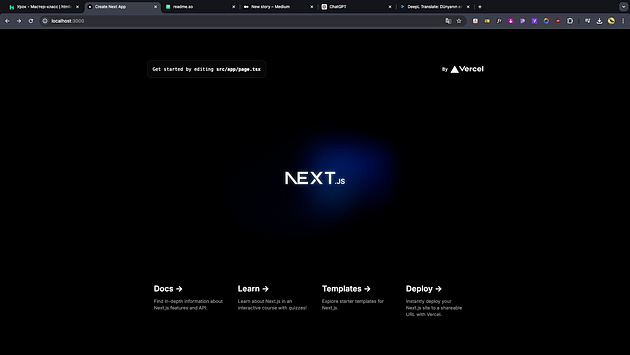
After running Project on local
Press enter or click to view image in full size
2.SEO Test
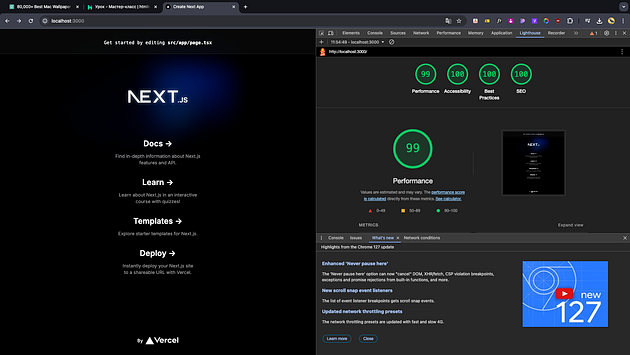
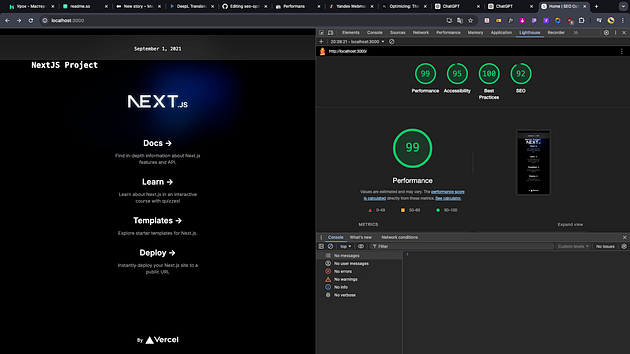
You can use the Lighthouse or Page Speed extension to check the speed of your website
You can test the loading speed for both Mobile and Desktop from Lighthouse by right clicking with the mouse in the browser.
Project loading speed can be a bit slow in DEV mode, but it will be even faster after the project is built
Press enter or click to view image in full size
3. SEO Settings Start
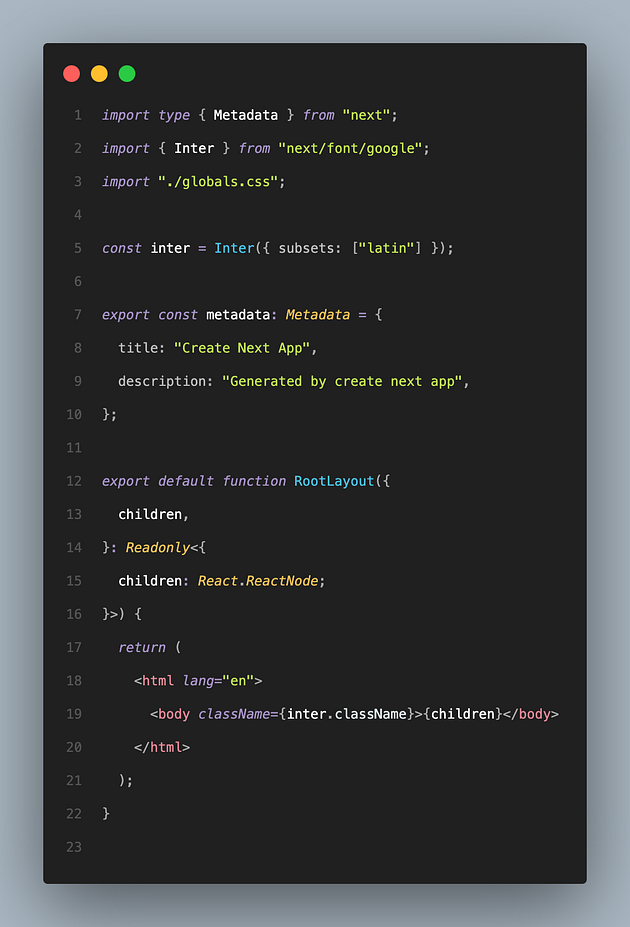
- For adding SEO on our project we need add Metadata tags on layout or on page where we works
- NextJS App router project’s default layout.tsx
Press enter or click to view image in full size
NOTE:
If you create the Metadata in default layout.tsx, you will create it for all pages that will run under this directory
If you create it inside the related page, it will only be valid for that page
For Example:
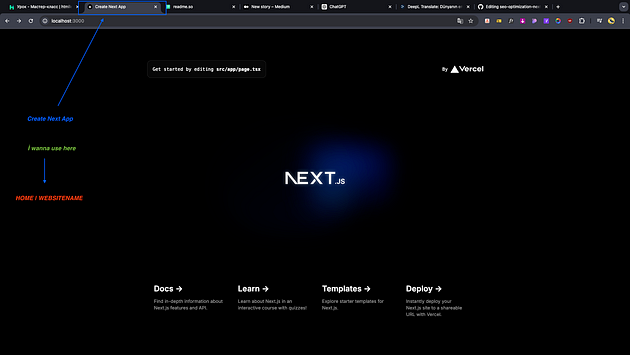
As you can see, the home page metadata tag appears as Create Next App, what we want is to appear as Home | WebsiteName
So how can we do this?
Press enter or click to view image in full size
We need change title default layout.tsx look like this:
Press enter or click to view image in full size
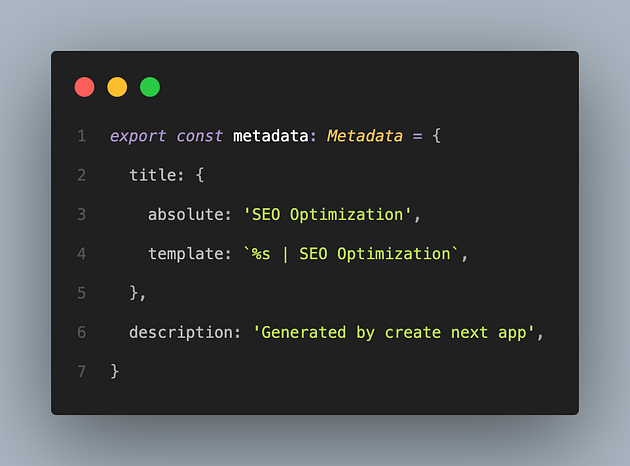
It’s very important because our absolute title is WebsiteName is SEO Optimization and we need add template for detect other metadata tags
After add Metadata tags on Home page
Press enter or click to view image in full size
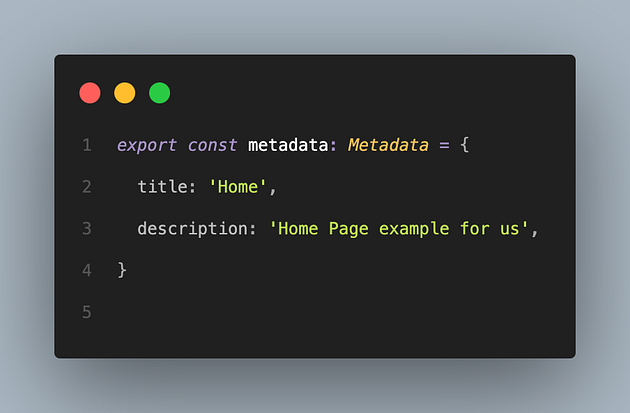
IMPORTANT NOTE:
The absolute path we define here will not work, what we expect is `Home | SEO Optimization` but the title will not look like this because it will not work if the app is in the same directory as layout.tsx in the router, and it must be a child page for it to work
Press enter or click to view image in full size
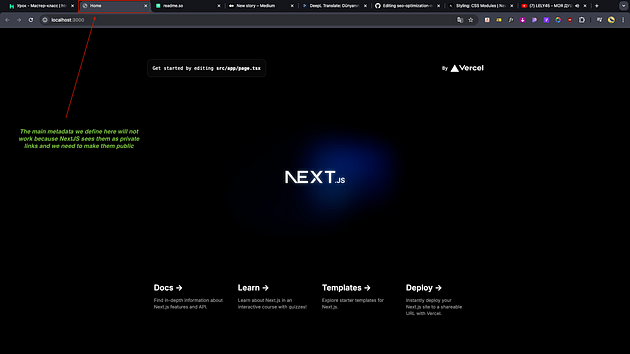
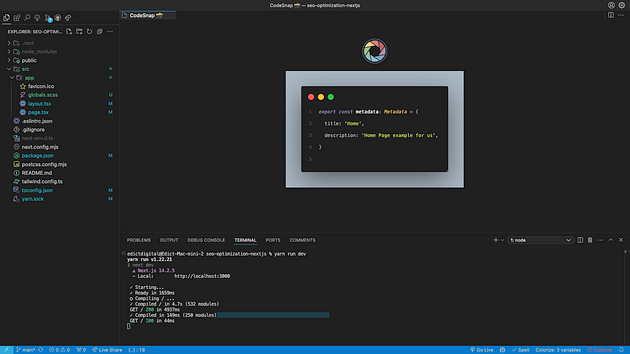
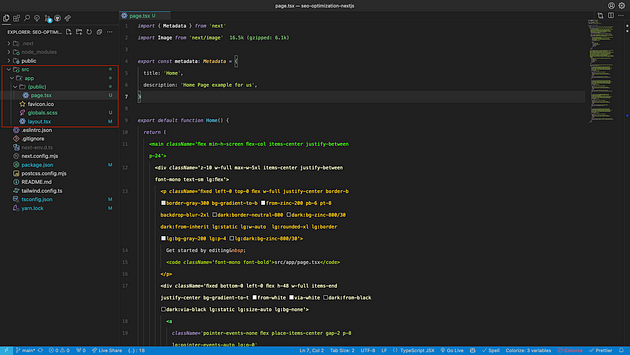
You need add public folder for change
From this
Press enter or click to view image in full size
To this
Press enter or click to view image in full size
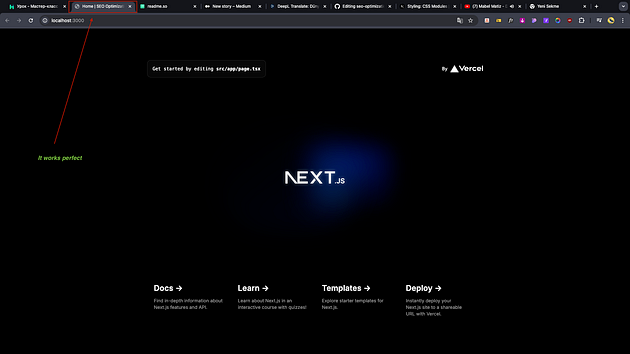
After doing this changes it will be works perfect
Press enter or click to view image in full size
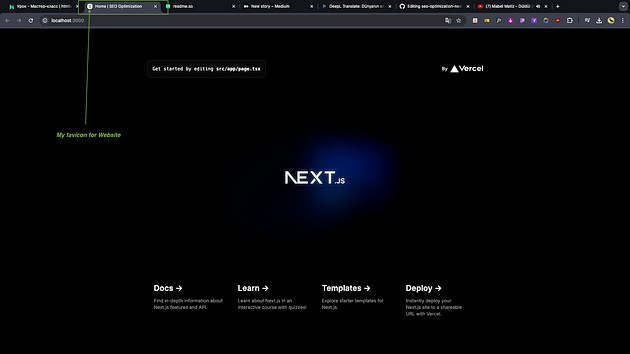
Favicon Setting
For all projects needs favicons for show our websites with our logo you can create favicon for type svg because some browsers is not support png, jpeg types
Before add favicon you need remove favicon.ico inside app router and add some code look like this for defaut layout.tsx
Add your favicon.svg and other images inside public folder
Press enter or click to view image in full size
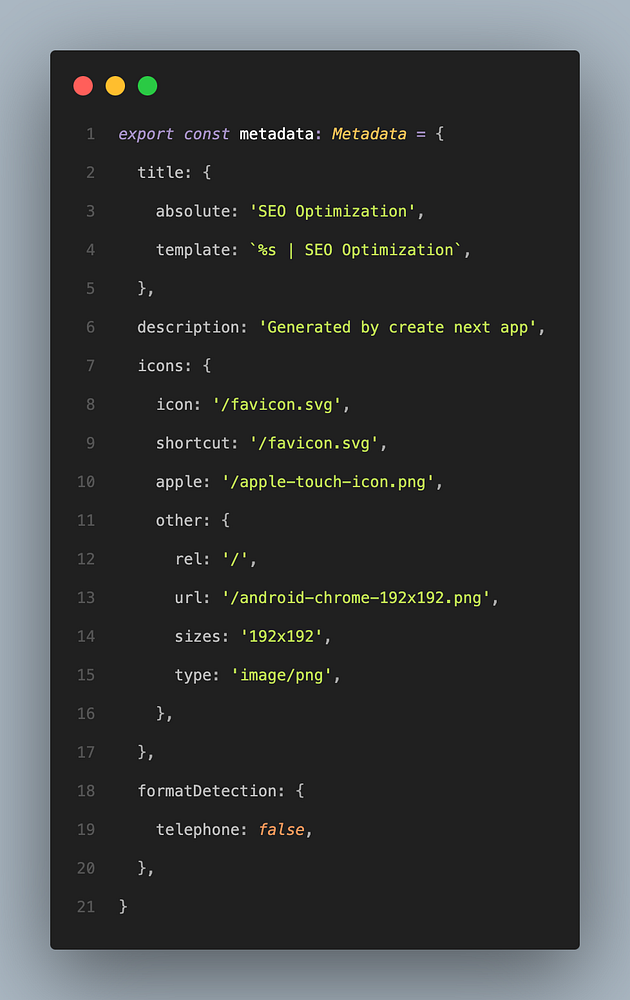
Important: we need to add a favicon for the svg type, otherwise the browser will not show your favicon
Press enter or click to view image in full size
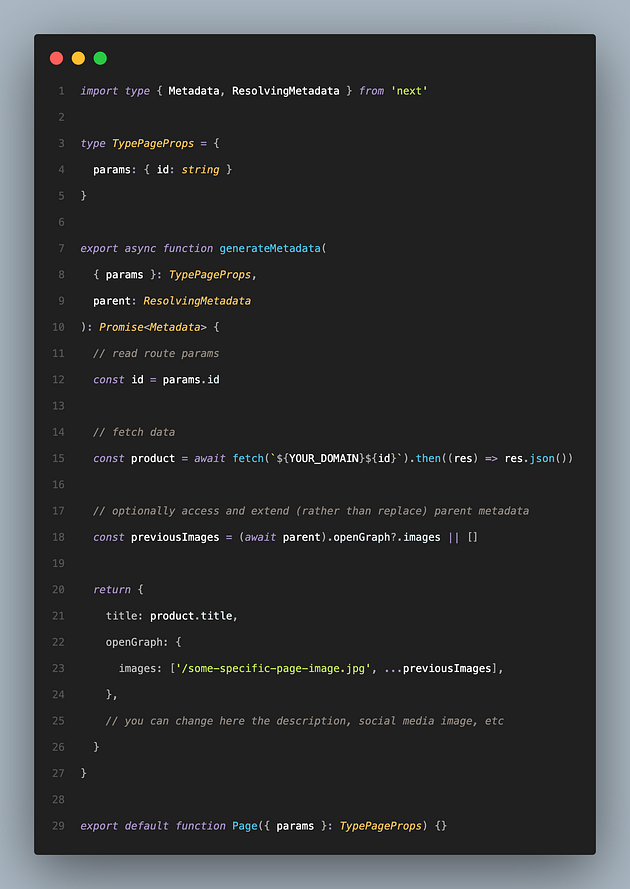
Generate Dynamic Metadata
if you wanna generate metadata for dynamic you can do look like this
Press enter or click to view image in full size
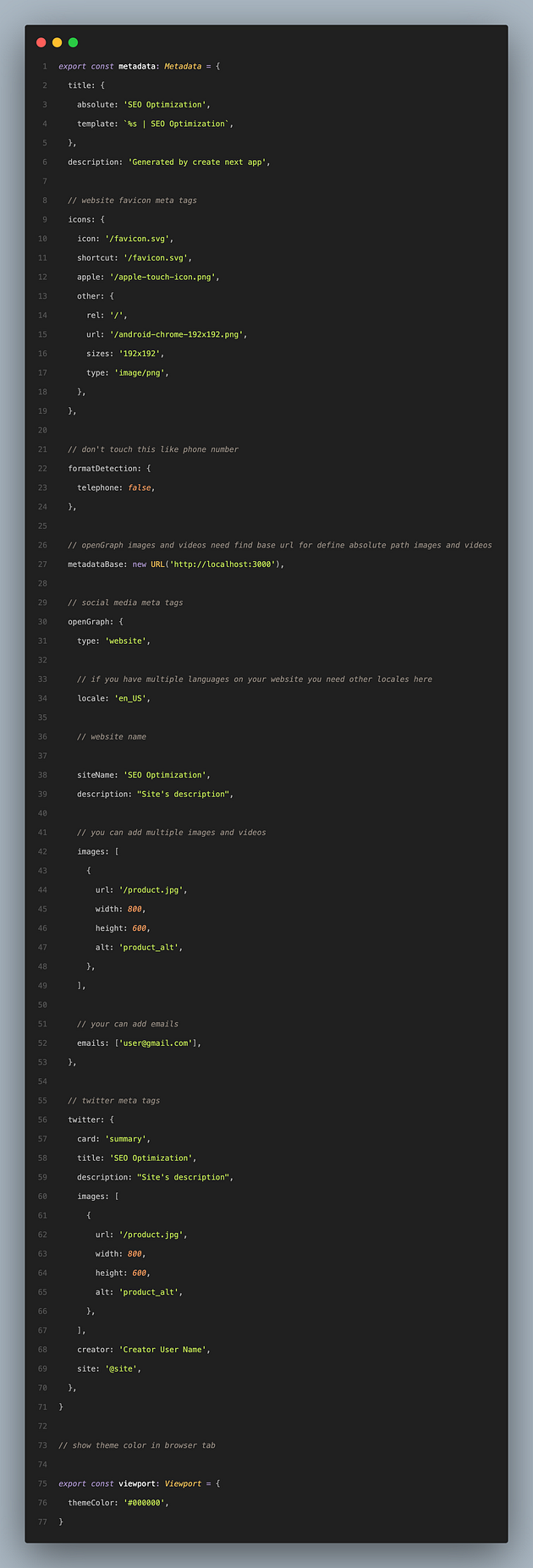
Social Media Meta Tags
When we share the link of the product inside the website, we need to add it to be a mini promotion of the product
Press enter or click to view image in full size
Semantic Tags for SEO Optimization
Semantic tags for our project SEO optimization try use them on your projects
- if you have navigation try use
MicroPatterning
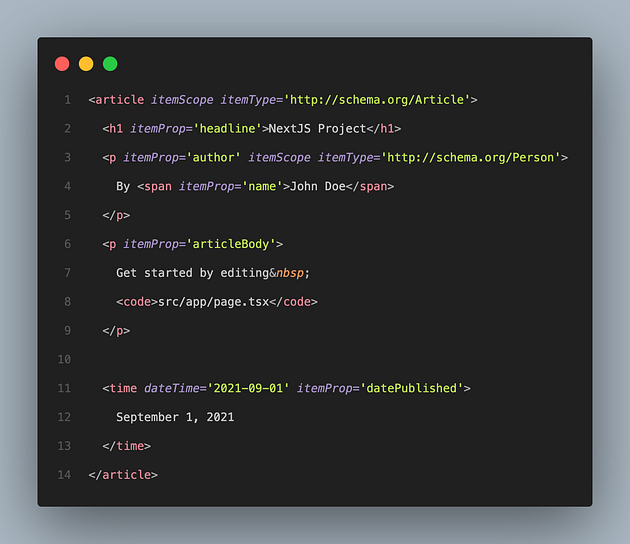
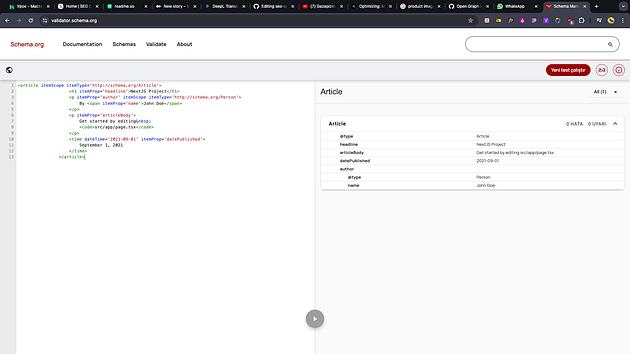
We may need to assign keywords to the tags so that the Google search engine can better understand what is happening on the page and what is where, and to understand what the content of this page is and exactly what page the information is on.
Here is example on article if on our website
Press enter or click to view image in full size
İmportant thinks for SEO
itemScope allows us to mark as microPattern, while itemType allows us to declare the type of tag being marked, for example: blog, organization
- More details you can read : https://schema.org/
- You can Test your Website or Code: https://validator.schema.org/
Test result
Press enter or click to view image in full size
Accessebility
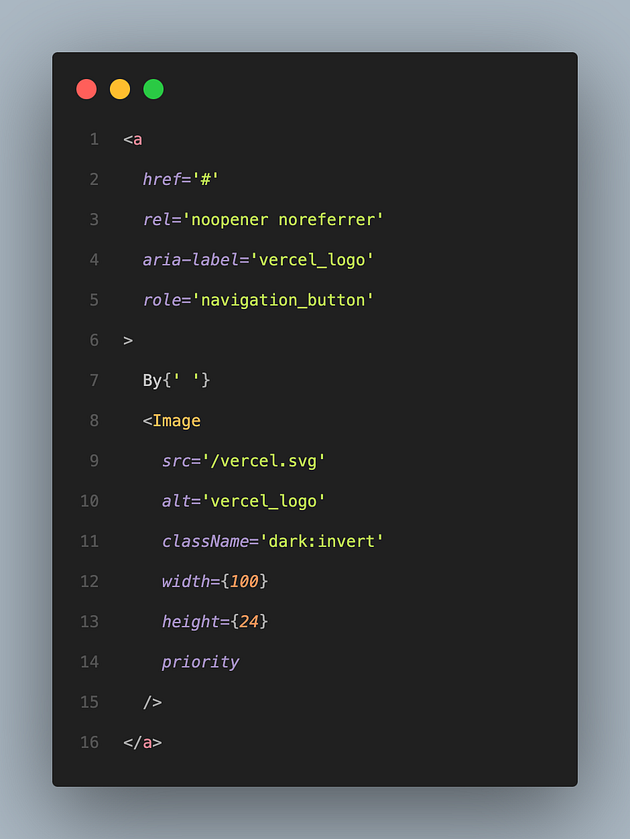
If we check the accessibility status of our website and follow SEO rules, we can also get to the top in terms of accessibility.
- Image tag ( alt ) property is REQUIRED
- Button (aria-label) and (role) properties are REQUIRED
Press enter or click to view image in full size
Multi-Language ( Localization )
If you want to add multi-lang functionality to your website
For NextJS have many localization libraries
on my projects i am using next-intl and here my github repository how to add next-intl on your projects
Github Repository For Multi Language Case
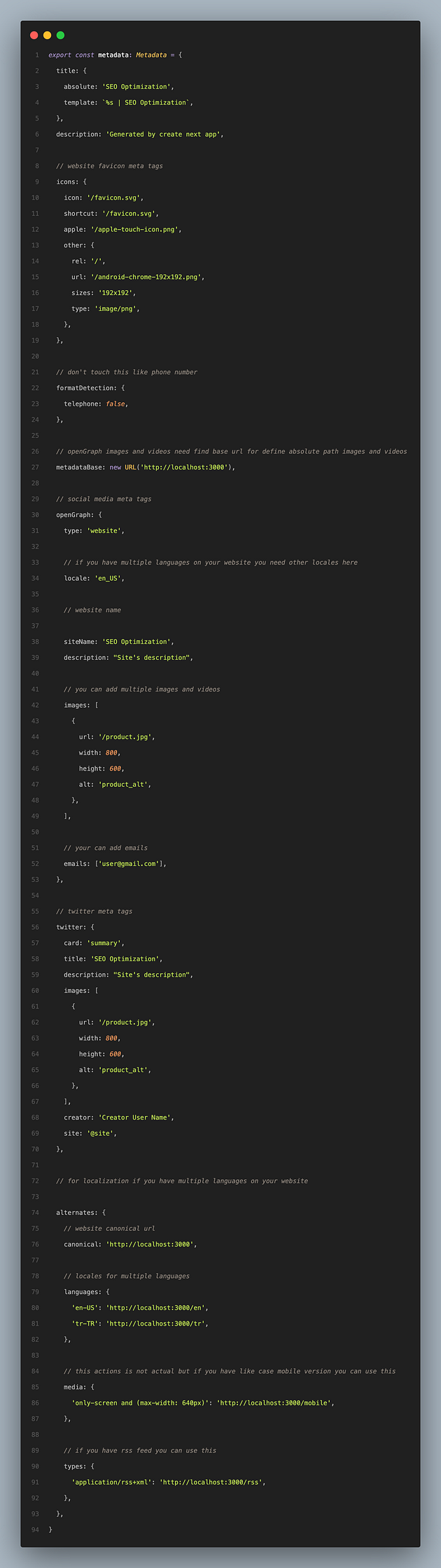
After adding multple language case on your project you can easy optimize SEO metadata for multi languages
Press enter or click to view image in full size
Search Console ( Google , Yandex )
By adding the domain address of our website here, we can find out how many people visit our website per day, week or month and where there is something missing and we can measure website performance.
Yandex Web Console
Press enter or click to view image in full size
Google Web Console
Press enter or click to view image in full size
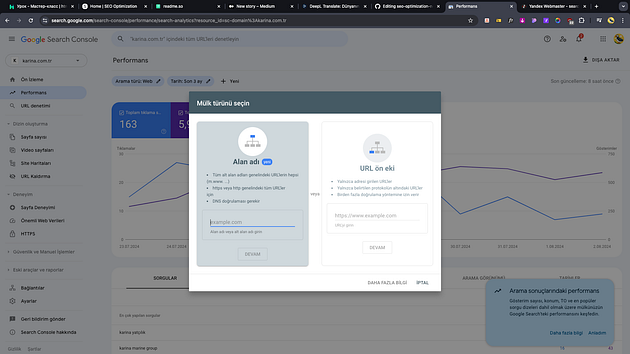
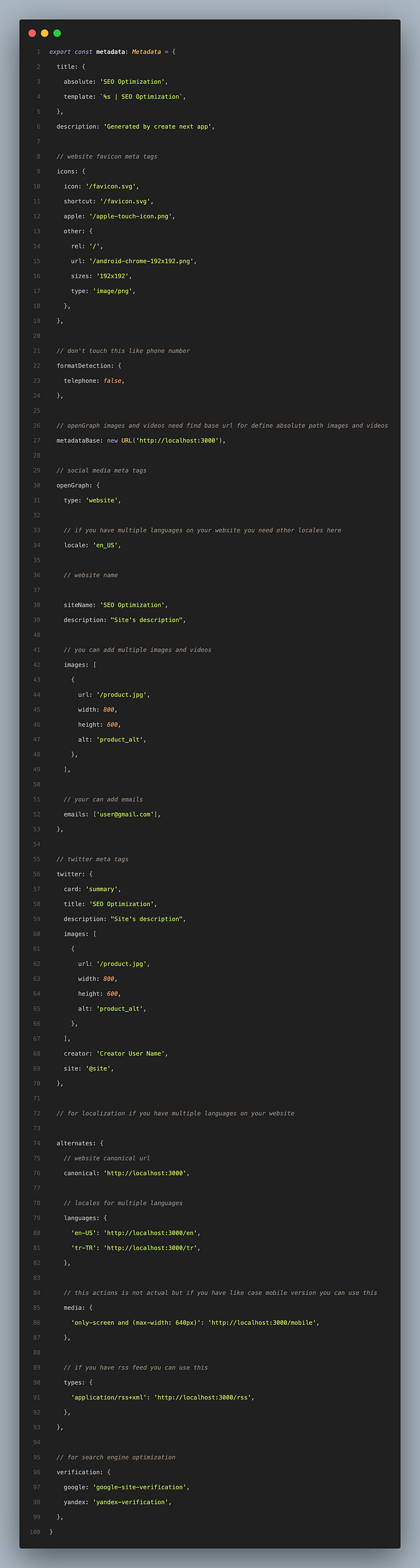
After registering with Google or Yandex web console, it will give you a special key, you just need to add that key to the metadata section in the default layout.tsx in the NEXTJS application and confirm the notification to your e-mail or account.
Press enter or click to view image in full size
Add ( Google , Yandex ) Analitics for Project
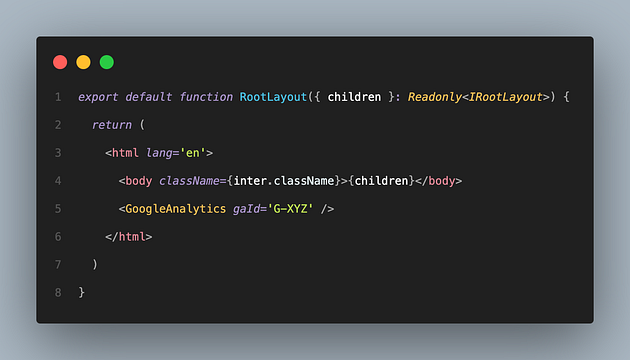
yarn add @next/third-parties@latest next@latest
After installing the package, you need to add the following for the default layout.tsx and google will give you a unique gaId when you register
Press enter or click to view image in full size
Robots.txt
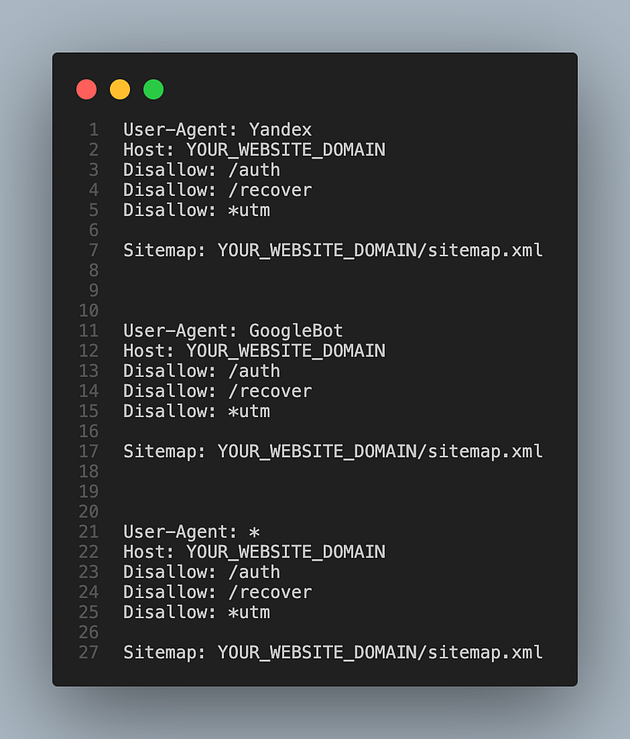
robots.tsx does is to determine which pages are open and which are closed
Press enter or click to view image in full size
Press enter or click to view image in full size
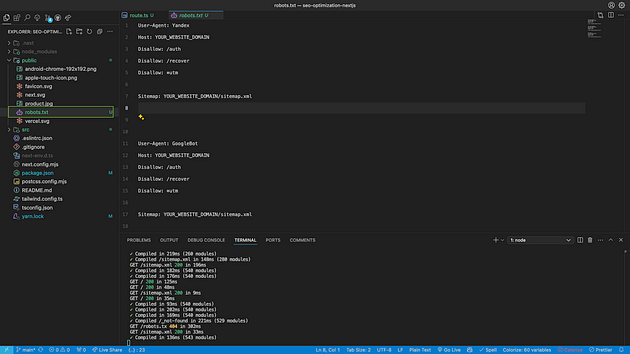
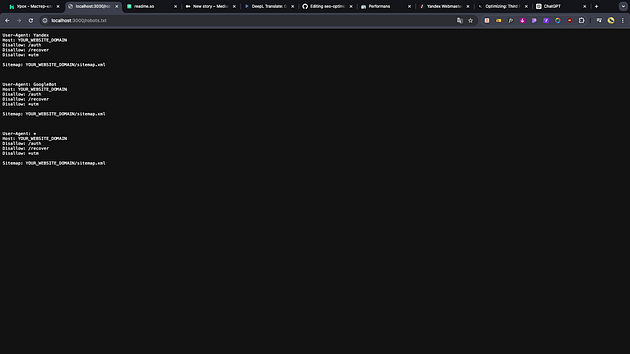
When we try on URL path /robots.txt we can see our gives commands
Press enter or click to view image in full size
Sitemap.xml
Sitemap.xml helps search engines to better understand and index all the pages on your site. This contributes to fast indexing, especially for new or updated pages
For automaticaly create sitemap.xml file on NextJS project we need install package:
yarn add next-sitemap
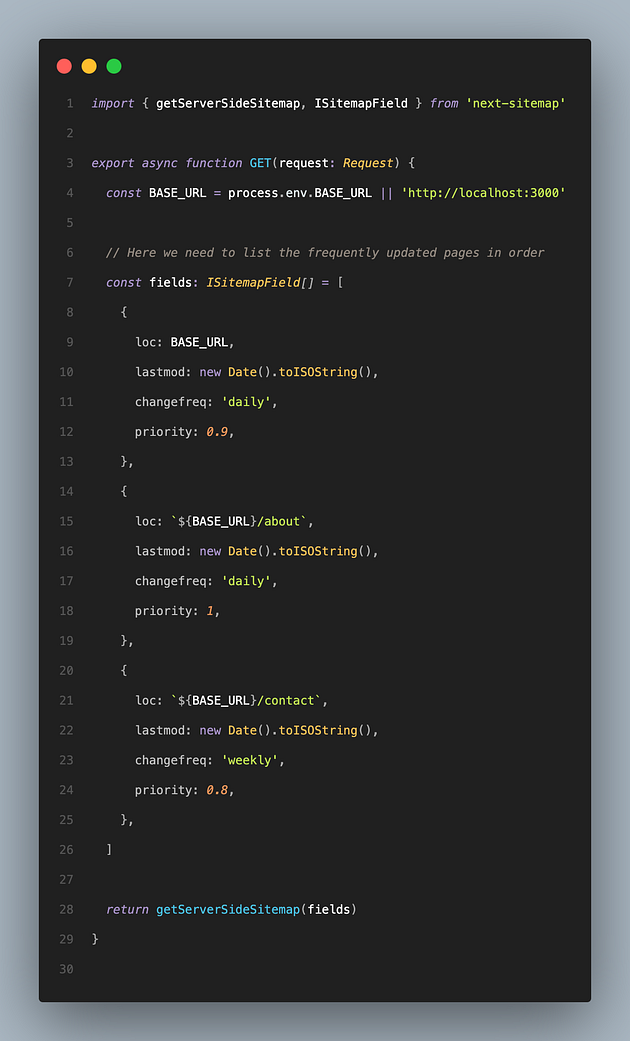
After installing this package, create a new sitemap.xml file in the App file that will only work on the server side and create a GET request in this folder that will finalize all the pages on our website so that the sitemap.xml file will be created automatically for you
Press enter or click to view image in full size
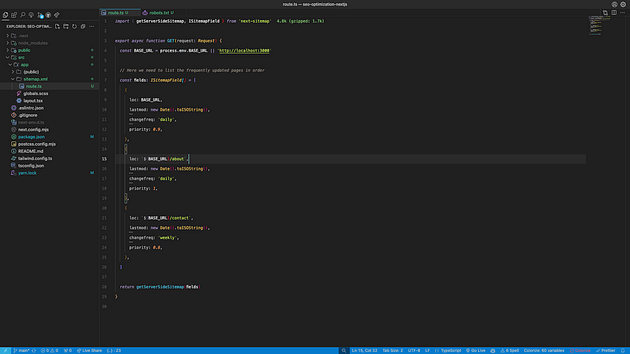
ROUTE.TS includes
Press enter or click to view image in full size
When we try on URL path /sitemap.xml we can see our autogenerate xml page files
Press enter or click to view image in full size
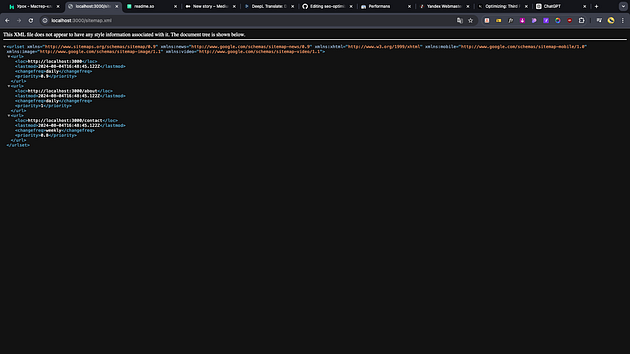
Important Notes
After completing Robots.txt and Sitemap.xml operations, do not forget to add to the Search Console (Google or Yandex)
PWA for Application
A PWA (Progressive Web Application) is a type of web application that offers a mobile app-like experience directly from a web browser, blending the best features of web and mobile apps
Responsive Design:
PWAs are designed to work seamlessly across various devices and screen sizes, ensuring a consistent user experience.
Offline Access:
By utilizing service workers, PWAs can function offline or on low-quality networks, allowing users to access content without an internet connection.
Instant Updates:
Unlike traditional apps, PWAs are always up-to-date, as users automatically access the latest version every time they visit.
App-like Experience:
PWAs provide features similar to native apps, such as splash screens, full-screen views, and smooth animations, delivering an immersive experience.
Secure:
PWAs are served over HTTPS, ensuring secure data transmission and building user trust.
High Performance:
With fast loading times and responsive interfaces, PWAs offer a high-performance experience that meets user expectations.
Push Notifications:
PWAs can send real-time notifications to engage users and keep them informed about updates or new content.
PWAs empower businesses and developers to reach a wider audience by eliminating the need for users to download an app. Instead, users can easily access the PWA from a web browser and, if desired, add it to their home screen for quick access.
HOW TO ADD PWA
You need to create a manifest.json file in the Public folder and create your website directories within this manifest
In our case the manifest.json is as follows
Press enter or click to view image in full size
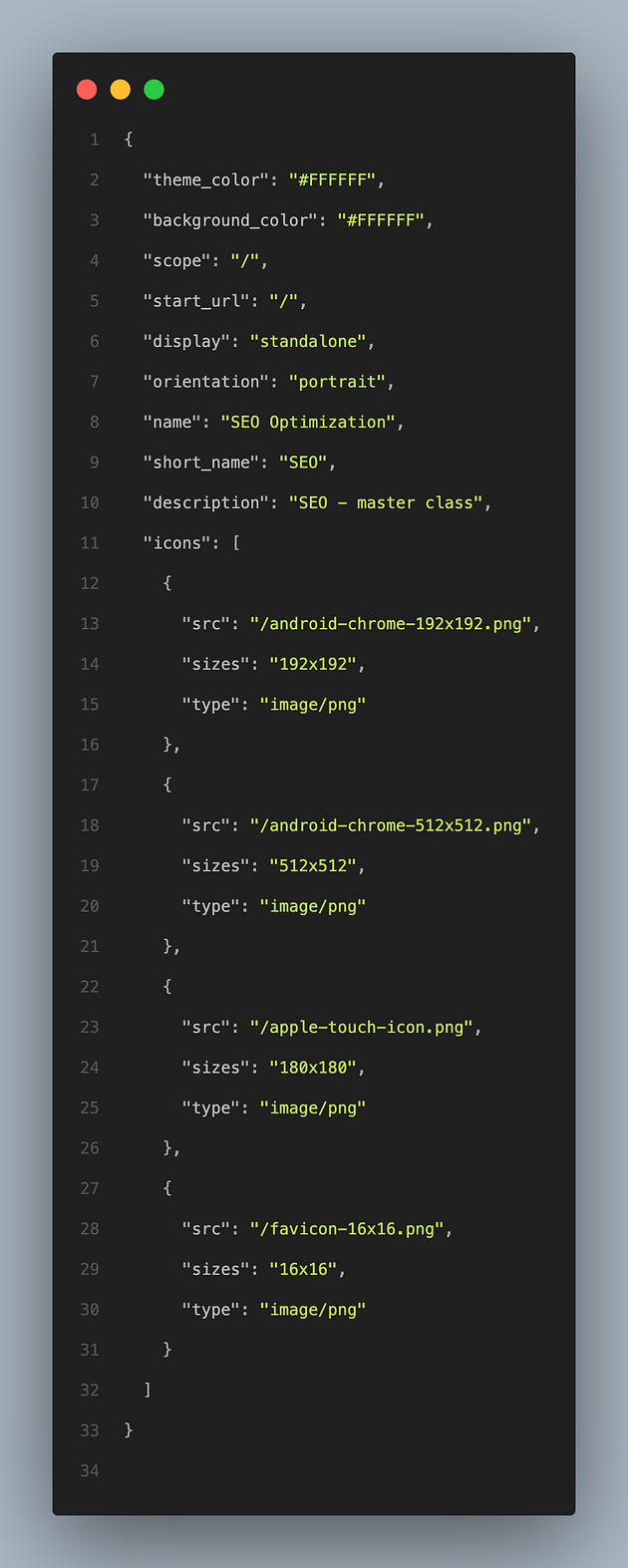
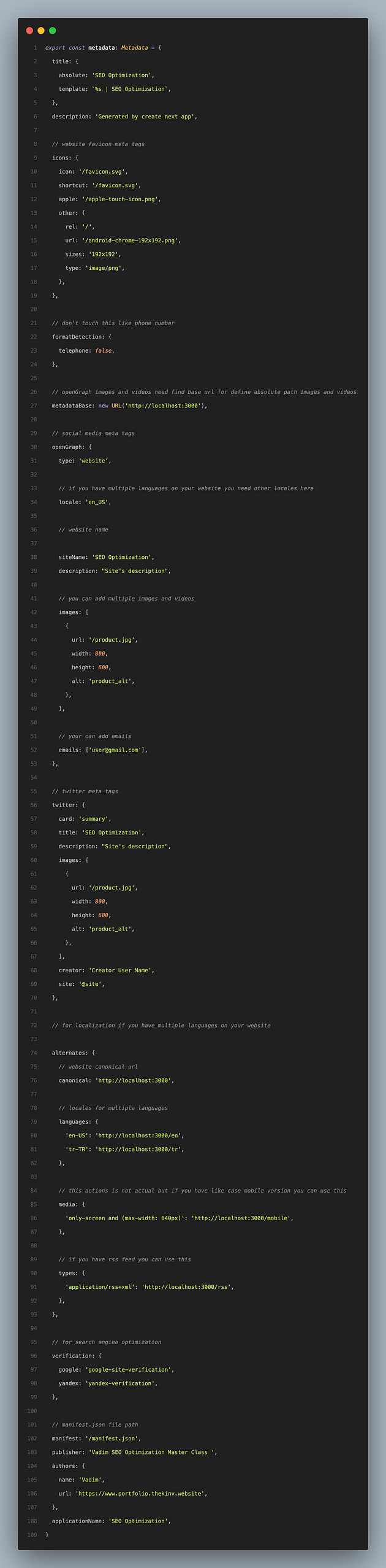
also add this manifest.json to default layout.tsx
Press enter or click to view image in full size
Run your project and you see PWA icon on top side
Press enter or click to view image in full size
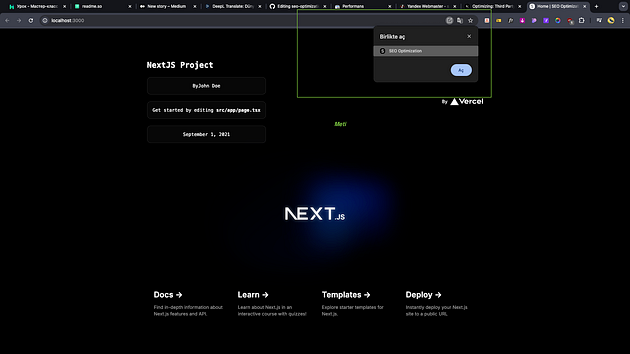
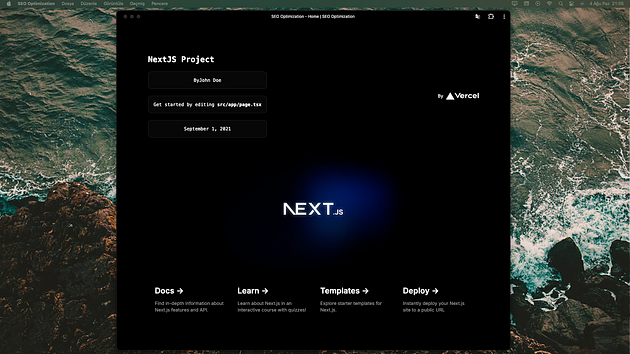
Our PWA Preview
Press enter or click to view image in full size
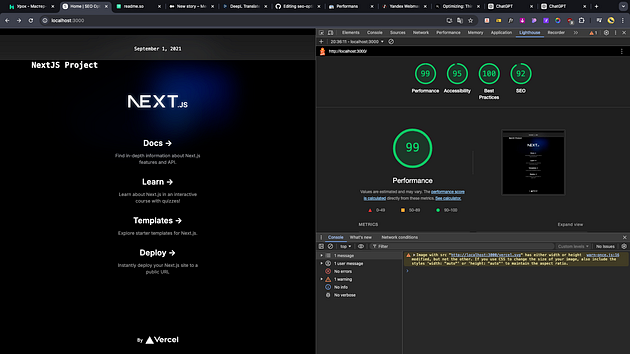
TEST SEO ( DEV | PROD ) MODE
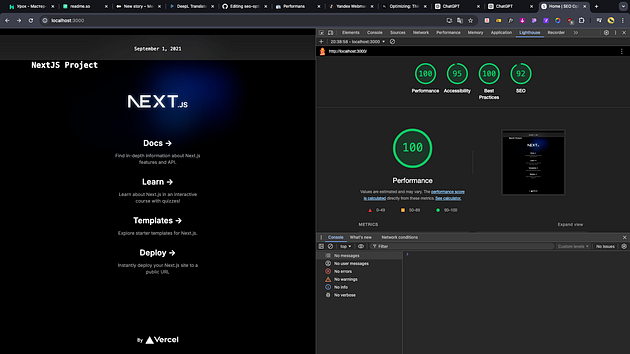
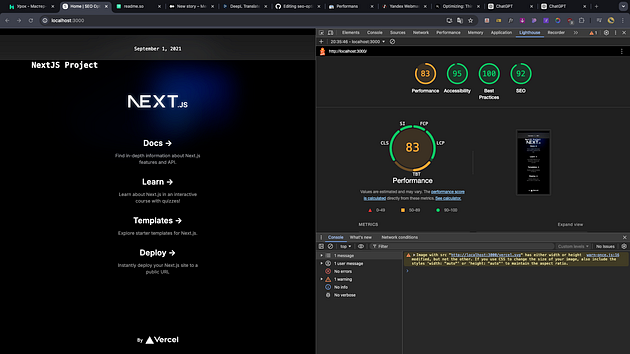
After doing all SEO settings we testing our application on DEV and PROD mode
DESKTOP DEV MODE
Press enter or click to view image in full size
DESKTOP PROD MODE
Press enter or click to view image in full size
MOBİLE DEV MODE
Press enter or click to view image in full size
MOBILE PROD MODE
Press enter or click to view image in full size
THANKS FOR READING….